
How to sell a bundle in set sizes only (for example 3, 7 or 10 products)
You can set up one bundle that can only be bought at specific sizes, such as 3, 7 or 10 products, each with its own price. Customers can't check out at a size in between, such as 4 or 5 products, so you don't need a separate bundle for each size.
Before you start
- Create your bundle and add your products. If you're new to Kitenzo, see Creating your First Bundle.
- Decide which sizes you want to offer and what each one costs. In this guide we use 3 soups for 40, 7 soups for 85 and 10 soups for 115.
Set the allowed bundle sizes
- In Kitenzo, go to Bundles and open the bundle you want to edit.
- In the Conditions section, click Add Rules (or Edit Rules if the bundle already has rules).
- On the Limit Rules tab, click Add rule.
- Choose Total number of products, then equal to, and enter 3.
- Click Add rule again and set Total number of products equal to 7.
- Click Add rule once more and set Total number of products equal to 10.
- Check the Summary at the top. It should read "This bundle needs the total number of products equal to 3, 7, or 10."
- Click Done.
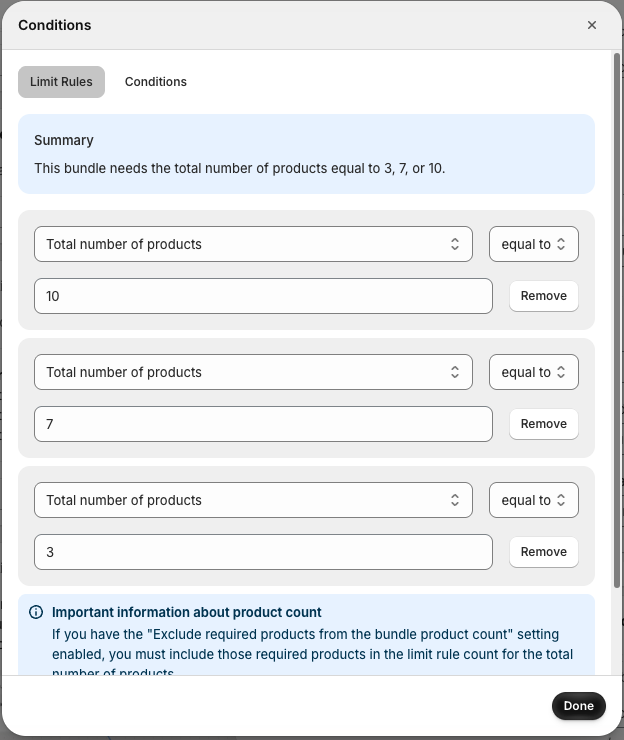
When you add more than one equal to rule for the number of products, Kitenzo treats them as "any of these". A bundle of 3, 7 or 10 products is valid.
Set a price for each size
- In the Pricing and discounts section, click Add pricing or discounts.
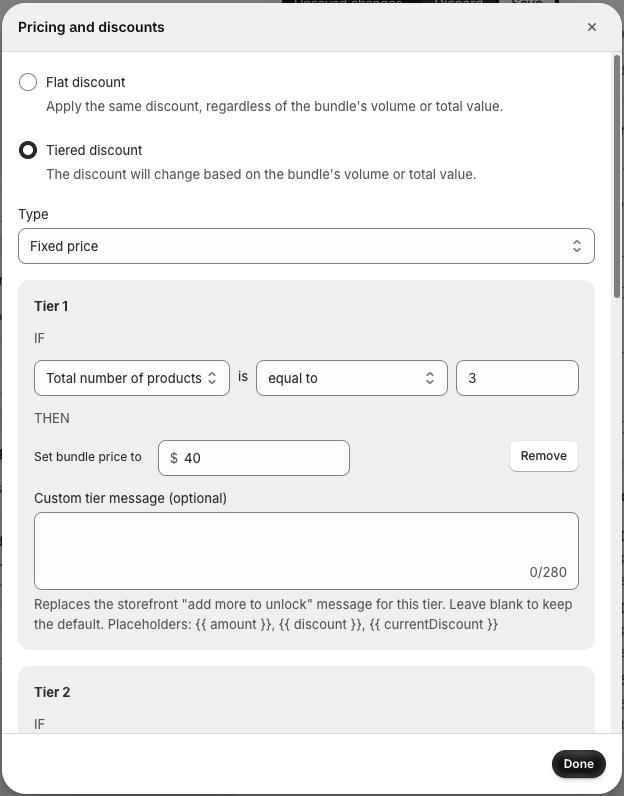
- Select Tiered discount.
- Set Type to Fixed price.
- In Tier 1, set Total number of products is equal to 3, then enter 40 in Set bundle price to.
- Click Add tier and set Tier 2 to equal to 7 with a price of 85.
- Click Add tier and set Tier 3 to equal to 10 with a price of 115.
- Click Done, then click Save at the top of the page.
Test the bundle on your store
- Open the bundle on your storefront.
- Add 3 products. The bundle shows your 3-product price and you can add it to the cart.
- Add one more product, so there are 4 in total. The Add to cart button is disabled.
- Keep adding products up to 7, then 10, and check that each size shows the right price and can be added to the cart.
- Once 10 products are in the bundle, customers can't add any more.
Things to know
- Limits and prices are separate settings. The rules under Conditions decide which sizes can be bought. The tiers under Pricing and discounts decide what each size costs. Set up both, and use the same numbers in each.
- In-between sizes show the normal product price. At 4 or 5 products, the bundle shows the regular price of those products instead of a tier price. Customers can't check out until they reach one of your sizes.
- Bundles with steps. You can add these rules to a single step instead of the whole bundle. Click Edit step and use the step's Limits tab. If a step uses auto-advance, it only moves on once the customer reaches the largest size, so customers can still choose 7 or 10.
- Other limits still apply. If you add other rules, such as a minimum bundle price, customers must meet those as well. Kitenzo warns you if another rule makes one of your sizes impossible to reach.
- Required products. If you have the "Exclude required products from the bundle product count" setting enabled, include those required products in your counts.
- Want any size to keep the last tier's price instead? Use greater than or equal to in your pricing tiers and skip the Conditions rules. For example, 4 to 6 soups would then cost the same as 3.