
How to set up multi-layer filtering on your Bundle Products block
Multi-layer filtering lets shoppers combine several labelled filter groups at once — for example picking Her under Recipient, Wedding under Occasion, and Self-Care under Gift Type, to see only products that match all three. You can also choose whether each group displays as a row of buttons or a compact dropdown, which is useful when a group has a lot of values.
Before you start
- This feature is currently rolled out selectively. If you don't see multi-layer filtering in your Bundle Products block settings, contact Kitenzo support to have it turned on for your store.
- This applies to the Bundle Products block in the Core template. Your bundle must have be using the Core.
- It's a separate feature from the existing flat tag filter and from grouping tabs — you can use it alongside either, or on its own.
How the filters combine
- Across different filter groups, it's AND. If a shopper picks a value under Recipient and a value under Occasion, products must match both.
- Within one group, it's OR — but only if you've allowed multiple selections in that group. If a shopper ticks both Wedding and Birthday under Occasion, products matching either one show.
- You choose, per group, whether shoppers can select just one value or several.
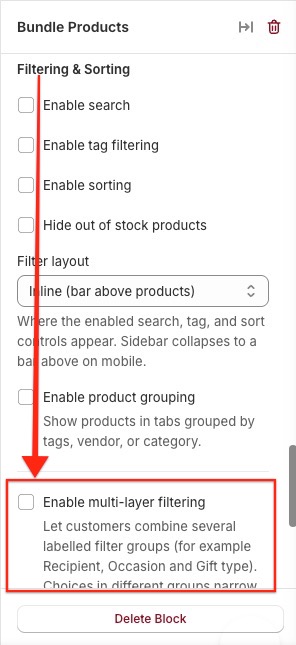
Turn on multi-layer filtering
- Open your bundle and select Launch design editor.
- Select the Bundle Products block on the canvas.
- Find Enable multi-layer filtering and turn it on.
Add a filter group
Once multi-layer filtering is on, a Filter groups list appears.
- Select Add to create a new filter group.
- Give it a Label — this is the name shoppers see, for example "Recipient" or "Dietary".
- Choose what the group filters by: Tag, Vendor, Category, or Product type.
- Choose whether shoppers can select just one value in this group, or several at once.
- Pick which values to include in the group. Only values actually present on your bundle's products are offered, and you can reorder them — the order you set here is the order shoppers see.
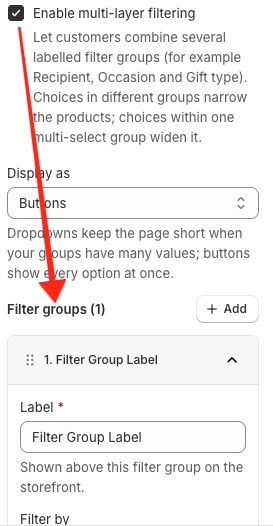
Repeat to add as many groups as you need (Recipient, Occasion, Gift Type, and so on), and drag to reorder the groups themselves. If you later remove or rename a tag in Shopify, a value that's no longer used by any product in the block simply stops appearing as a filter option — shoppers never see a dead filter.
Choose how groups display: buttons or dropdowns
Next to your filter groups is a display setting with two options:
- Buttons (the default) — each group shows as a row of tappable chips.
- Dropdowns — each group collapses behind a small menu that opens on click, showing a checklist (or a single-choice list, if you set that group to one selection). A number badge shows how many values are selected, and a Clear link inside the dropdown resets just that group.
Dropdowns keep the page compact when a group has many values (useful for something like a long list of dietary tags); buttons are more visual when a group only has a handful of options.
Clean up how tag names appear to shoppers
If your Shopify tags are namespaced — for example Dietary_Salt-Free or Flavor_Peppery — you probably don't want shoppers to see the raw tag. Two settings help:
- Hide tag prefix — type the separator your tags use (for example
_) and everything up to and including it is hidden.Dietary_Salt-Freethen shows to shoppers as simply Salt-Free. Values that don't contain the separator are shown unchanged. - Display labels — open this to rename any individual value by hand, for full control (for example turning "Salt-Free" into "Low Sodium"). The original tag is still what gets filtered, so renaming is always safe. Leave a value blank to show it as-is.
What shoppers see
On the storefront, filter groups appear above your bundle's products (inline, or in the sidebar column, depending on how your filters are already positioned). Each group is clearly labelled, and selections narrow the product list live as shoppers make them. A Clear all control resets every group and the existing tag/search filters together.
Troubleshooting
- I don't see "Enable multi-layer filtering" in my Bundle Products settings. This feature is rolled out per store. Contact Kitenzo support to have it enabled.
- A filter group isn't showing on the storefront. A group only appears once it has a label and at least one value present among the block's current products — check both.
- Checkboxes in a dropdown filter show as a thin line instead of a checkbox. This is a known clash with some themes' own form styling. Add the following to your bundle's Custom CSS to restore them:
[data-facet-display="dropdown"] input[type="checkbox"],
[data-facet-display="dropdown"] input[type="radio"] {
  -webkit-appearance: auto !important;
  -moz-appearance: auto !important;
  appearance: auto !important;
  width: 16px !important;
  height: 16px !important;
  min-width: 16px !important;
  flex: 0 0 16px !important;
  margin: 2px 0 0 !important;
  padding: 0 !important;
  border: 0 !important;
  background: none !important;
  box-shadow: none !important;
  opacity: 1 !important;
  position: static !important;
}
- Shoppers still see the raw tag name (with underscores). Set "Hide tag prefix" to match your tag's separator, or rename the value directly under "Display labels".