
How to customize your Bundle Products block
A few settings let you fine-tune how your Bundle Products block looks and feels: the space between product cards, a background color just for the cards, and whether the product search field stays expanded or collapses behind an icon. This guide walks through each.
Before you start
This applies to the Core template visual editor. Your bundle must be using the visual editor.
Space between product cards (Grid spacing)
Grid spacing is a bundle-wide setting, so it applies consistently across your grid, list, carousel, and summary views — you only need to set it once.
- Open your bundle and select Launch design editor.
-
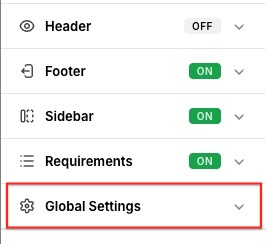
Open the Global settings panel (not a specific block).
- At the top, in the Style group, find Grid spacing.
- Drag the slider to set the space between product cards, in pixels.
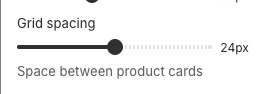
If you never touch this setting, each view keeps its own original spacing (24px for grid, 16px for list and carousel, 8px for the order summary), so leaving it alone doesn't change anything on an existing bundle.
A background color for product cards
Card background color tints just the card surface — not the whole Bundle Products block — which is useful when you want products to stand out against a different block background.
-
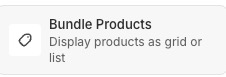
Select the Bundle Products block on the canvas.
- In its settings, find Card background color.
- Pick a color. Leave it unset to let cards use the block's own background.
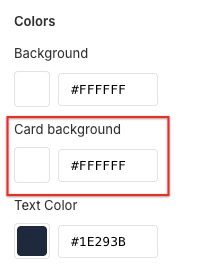
If your cards have borders turned off and you set a card background color, Kitenzo automatically adds a little breathing room around the card's text and image so nothing sits flush against the colored edge.
Collapsible search bar
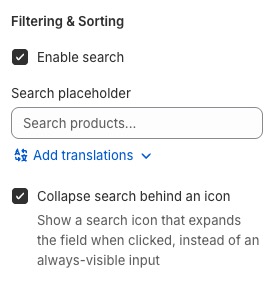
If your Bundle Products block has product search turned on, you can choose whether the search field is always visible or collapses behind a search icon until a shopper clicks it — handy for keeping a busy toolbar compact.
- Select the Bundle Products block on the canvas.
- Find the search bar setting that collapses the field behind an icon (it sits alongside your other product filter settings).
- Turn it on to collapse the search behind an icon, or leave it off to keep the search field expanded (the default).
Troubleshooting
- Grid spacing doesn't seem to change my carousel or summary view. Grid spacing applies across every product view at once, so double check you're looking at the same bundle after saving — there's no separate spacing setting per view.
- My product card text looks cramped against the background color. This only self-corrects when borders are turned off; if borders are on, the card's usual border padding already keeps text off the edge.
- The search icon doesn't expand when clicked. Make sure product search itself is turned on for the block — the collapse setting only affects how an already-enabled search field is displayed.