
How to set a bundle weight limit
A weight limit stops shoppers from building a bundle that's too heavy to ship affordably. Set a maximum total weight once, and Kitenzo blocks the shopper from going over it — no extra app, no manual math.
Before you start
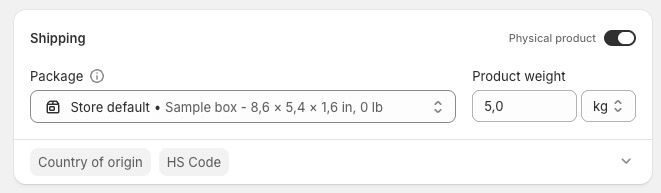
- Make sure the products in your bundle have a weight set in Shopify (go to the product, then Shipping > Weight). Kitenzo reads this automatically, so there's nothing to set up on the Kitenzo side.
- Know your weight limit in your store's default weight unit. You can check this under Shopify's Settings > General > Standards and formats > Default weight unit. Kitenzo always shows and uses this same unit (kg, lb, oz, or g).
Add a weight limit to your bundle
- Open the bundle you want to add a limit to.
-
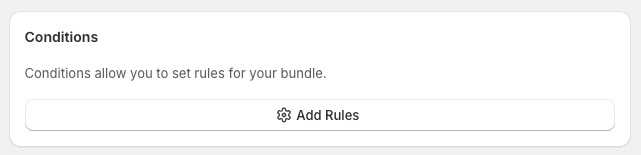
Scroll to the Conditions section and select Add rules (this button says Edit rules if the bundle already has rules).
-
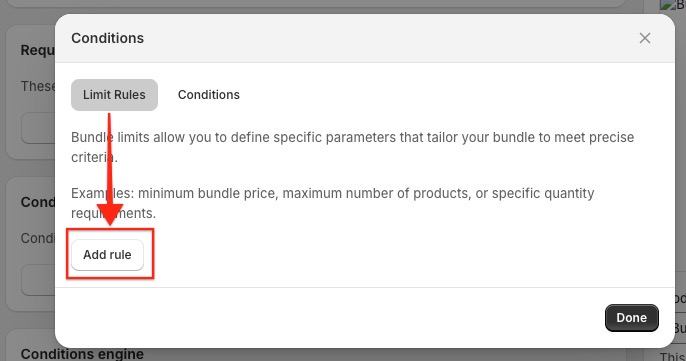
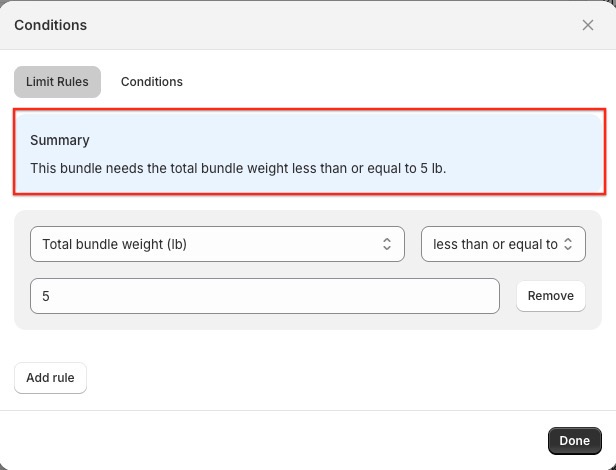
In the window that opens, stay on the Limit Rules tab and select Add rule.
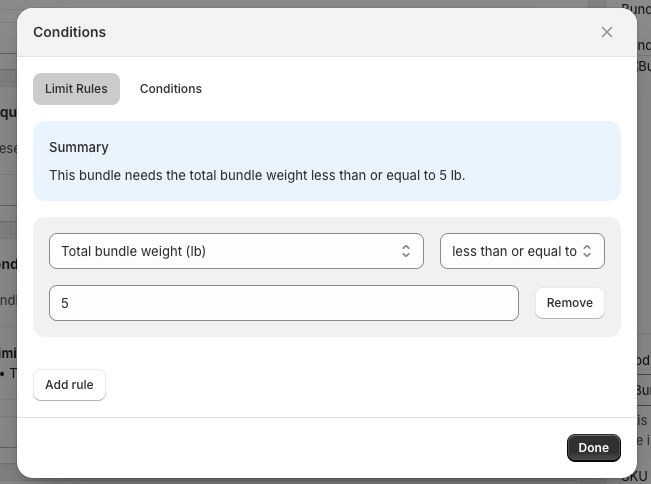
- In the first dropdown, choose Total bundle weight. The option shows your store's weight unit, for example Total bundle weight (kg).
- In the second dropdown, choose how the limit should work. For a maximum weight, choose less than or equal to.
- In the value field, type your limit as a number, using your store's weight unit. For example, if your store's unit is kg and you want a 5 kg maximum, type 5.
-
Check the Summary above the rule — it restates the rule in plain language, for example: "This bundle needs the total bundle weight less than or equal to 5 kg." Use it to confirm you set the rule up the way you meant to.
- Select Done to close the window.
- Select Save on the bundle page to save your changes.
What shoppers see
Once Disable overfilling is turned on for the bundle, a weight limit works just like your price and quantity limits:
- The Add to bundle button disables itself the moment adding a product would go over the limit.
- If a shopper somehow reaches checkout over the limit, adding the bundle to their cart is blocked with a message such as: "You can add up to 5 kg to your bundle."
The exact wording changes depending on the rule you chose, but the unit shown always matches your store's default weight unit.
Using a weight limit with other rules
A weight limit can sit alongside any price or quantity limits already on the bundle. Each rule is checked on its own, so a bundle can, for example, require at least 2 products and no more than 5 kg at the same time.
Troubleshooting
- The bundle allows more weight than expected. Check whether any products in the bundle are missing a weight in Shopify — these count as 0 toward the total.
- Shoppers aren't blocked from going over the limit. Make sure Disable overfilling is turned on for the bundle.
- A product's weight change isn't showing up yet. Weight changes in Shopify take a short time to sync to Kitenzo. Wait a few minutes and check again.
If you change your store's default weight unit in Shopify (for example, from lb to kg), existing weight limits keep their original number and aren't converted automatically. Double-check and re-enter any weight limits after changing your store's default unit.