
Grouping your bundle products into tabs
When building a bundle with many product options, adding tabs helps your customers quickly find specific items such as flavors, categories, or brands. Product grouping organizes your items into tabbed sections on your storefront so shoppers can browse effortlessly.
In this guide, we will walk you through how to enable and configure product grouping in your Shopify theme editor.
Enabling product grouping
To start grouping your bundle products into tabs, follow these steps:
- In the bundle list select the bundle you would like to edit.
- Open the Design editor.
-
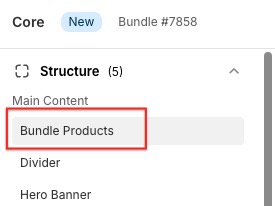
Select the Bundle Products block in the preview editor.
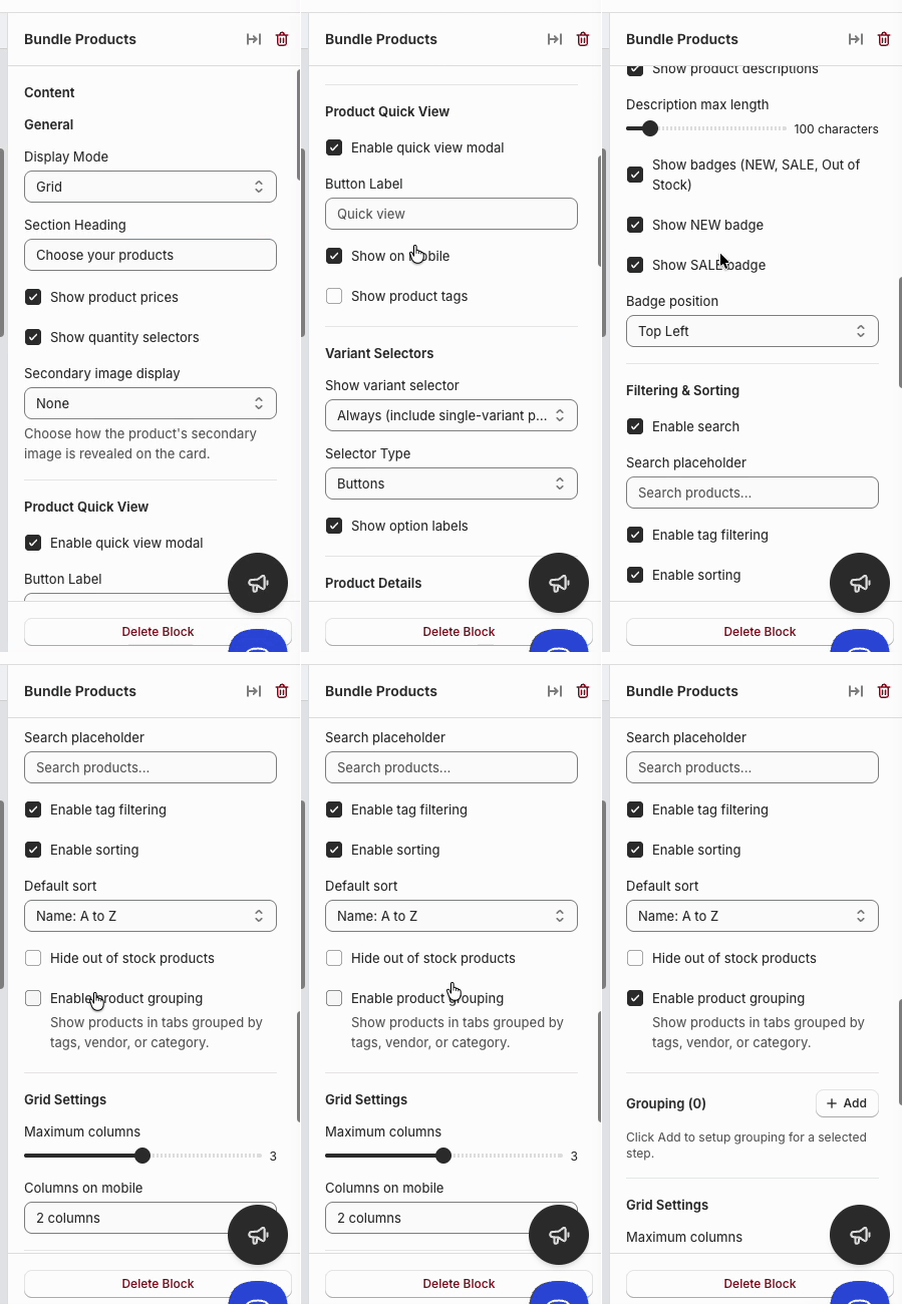
- In the settings sidebar on the right side of the screen, scroll down to the Filtering & Sorting section.
-
Check the box labeled Enable product grouping.
Configuring grouping settings
Once product grouping is enabled, a Grouping panel will appear below in your settings sidebar.
1. Select the bundle step
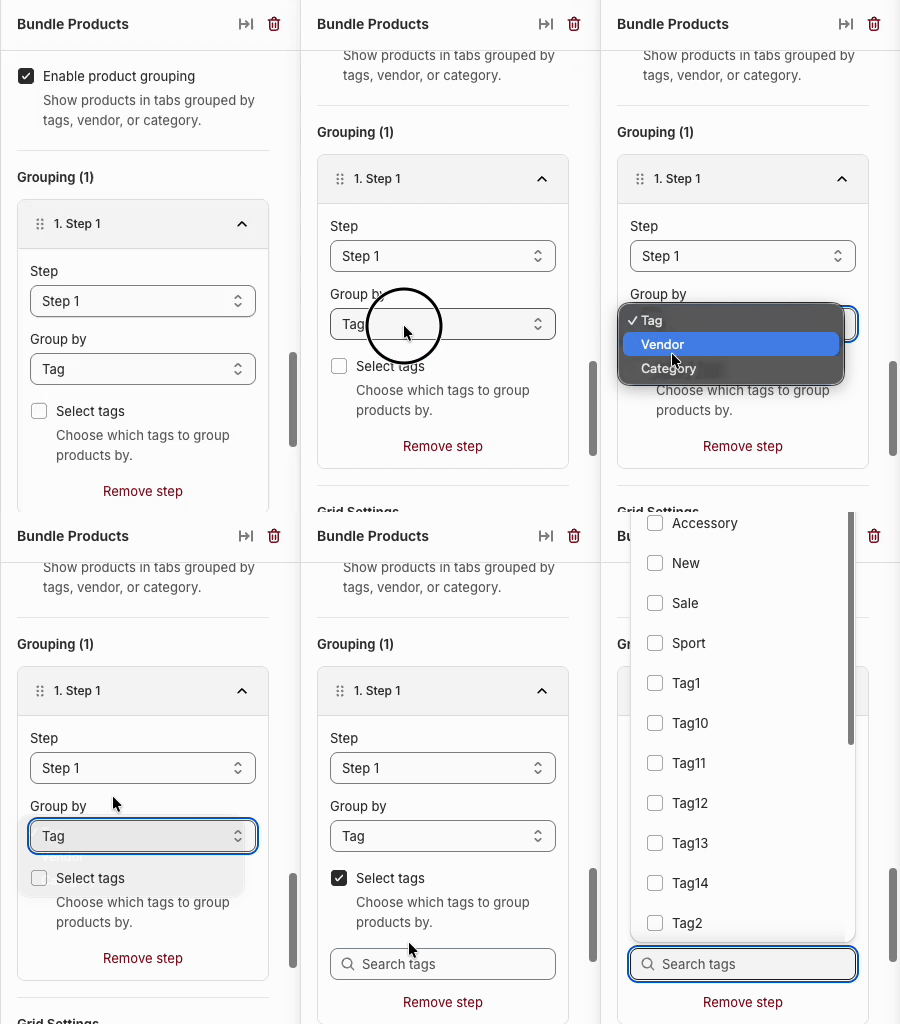
If your bundle contains multiple steps, choose the step you wish to apply product grouping to from the Step dropdown menu.
2. Choose your grouping type
In the Group by dropdown menu, select how you want to organize your products:
- Tag: Groups products using Shopify product tags. This is ideal for custom filter tabs such as Citrus, Fruity, or Gluten-Free.
- Vendor: Groups products automatically based on their assigned product vendor in Shopify.
- Category: Groups products using assigned product categories.
3. Select specific tags or categories
When grouping by Tag, Vendor or Category, an additional setting will appear:
- Check Select tags, Vendor or categories if you want to specify which tags or categories should appear as tabs.
-
Select the specific tags or categories you want to display on your storefront.
How filters appear on your storefront
After saving your settings in the theme editor, your bundle page will display interactive tabs above the product grid. Customers can select tabs such as All, Citrus, or Fruity to filter the displayed products instantly.

Tip: Ensure that your products in Shopify have the relevant tags, vendors, or categories assigned before setting up grouping so Kitenzo can display them properly.