
How do I add swatches in Kitenzo?
Kitenzo can show your product's real Shopify swatches — the same colour or image swatches customers see on your product pages — right in the bundle picker, instead of plain buttons.
Before you start
Your product's variant options need swatches already set up in Shopify (colour or image swatches on the option values).
Tip: Swatches can be set up in Shopify following this Shopify help guide Here
Adjust the settings for swatches.
- From your Shopify admin, open Kitenzo and edit the bundle you want to update.
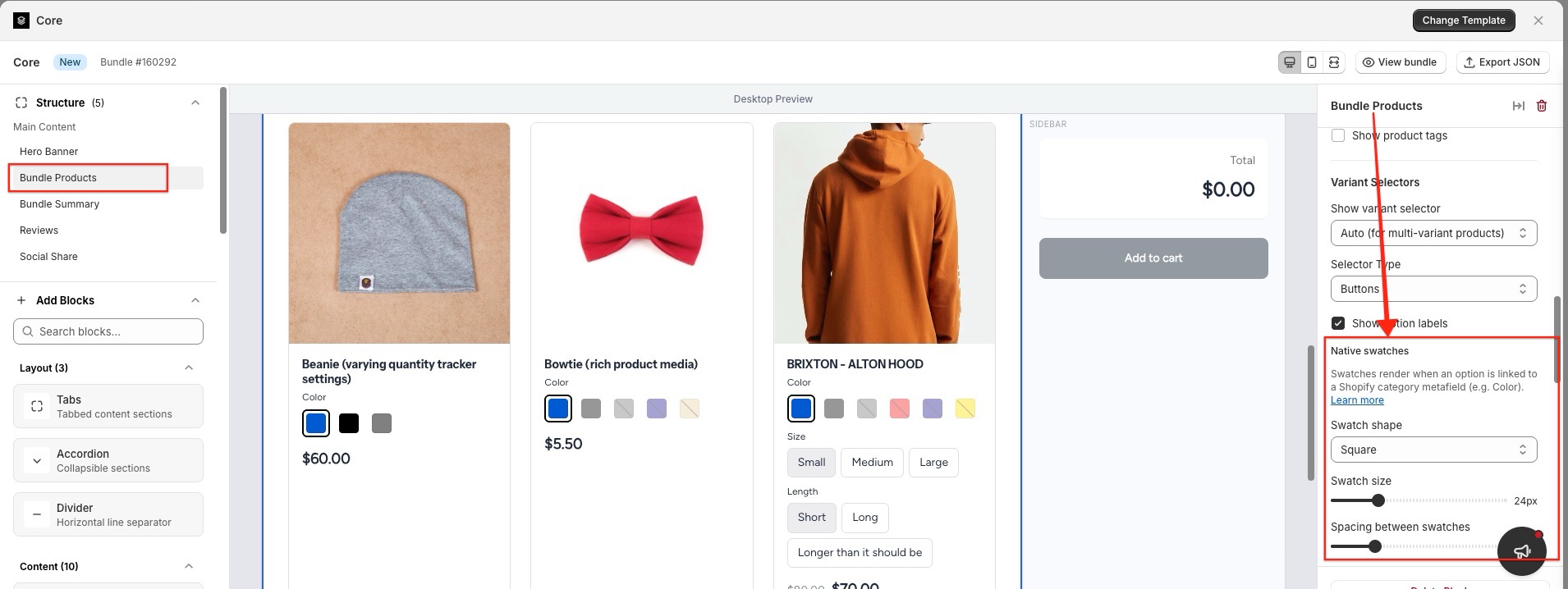
- In the editor, select the Bundle Products block.
- Find the Swatch shape setting and choose Circle or Square.
- Use Swatch size (px) to make the swatches bigger or smaller and the Spacing between swatches (px) to adjust the space between the swatches.
- Click Save.
What to expect
- When an option has swatches, Kitenzo automatically shows them as buttons — dropdown menus can't display swatches.
- Clicking a swatch updates the product image shown in the bundle and selects that variant.
- If there are more swatches than fit on one row, they wrap to a new row.
- An option value with no colour or image set shows a chequered pattern.
- Sold-out variants are shown with a strikethrough and a "(sold out)" label. They can't be selected, but customers can still see them alongside the available options.