
How do I hide my dummy products from the 'All products' collection?
There are two ways to hide bundle-only ("dummy") products from your storefront: rebuilding your "All" collection with conditions that exclude them, or changing a product's status to Unlisted for broader hiding across collections, search and recommendations. Pick whichever fits what you need.
Option 1: Rebuild your "All" collection to exclude them
To hide 'dummy' bundles from your collections in Shopify, you’ll need to create a new collection to replace the 'All' and then set up some conditions. Follow these steps to get started:
In your Shopify Admin, go to ‘Collections’ (or click here), and click ‘Create collection’.
Enter the following details:
Name: Enter ‘All’ (this will replace the default Shopify ‘All’ collection).
Collection type: Select ‘Automated’.
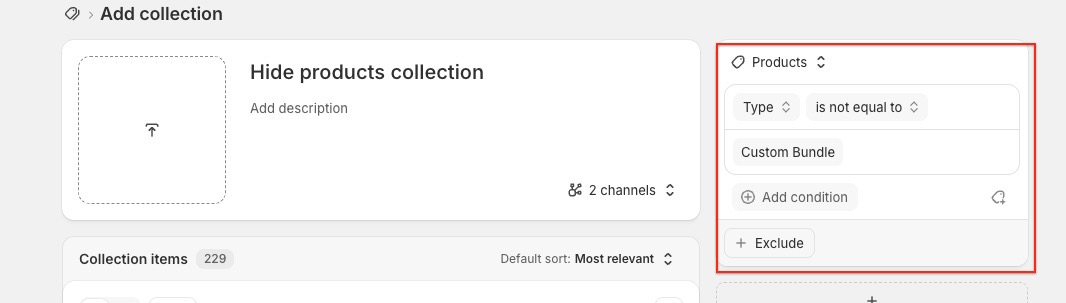
Conditions
We need to create two conditions.
Condition 1:
Set to ‘Type’.
Condition 2:
Is not equal to.
Condition 3:
From the list select 'Custom Bundle'.
It should look like this:
Click ‘Save’.
All products with the 'Type' not set as 'Custom Bundle', will now appear in this collection.
Now we need to hide the dummy products.
Go to the ‘Products’ section in your Shopify Admin (or click here). Find the dummy product you want to hide, click on it, and under ‘Product Type’, enter ‘Custom Bundle’.
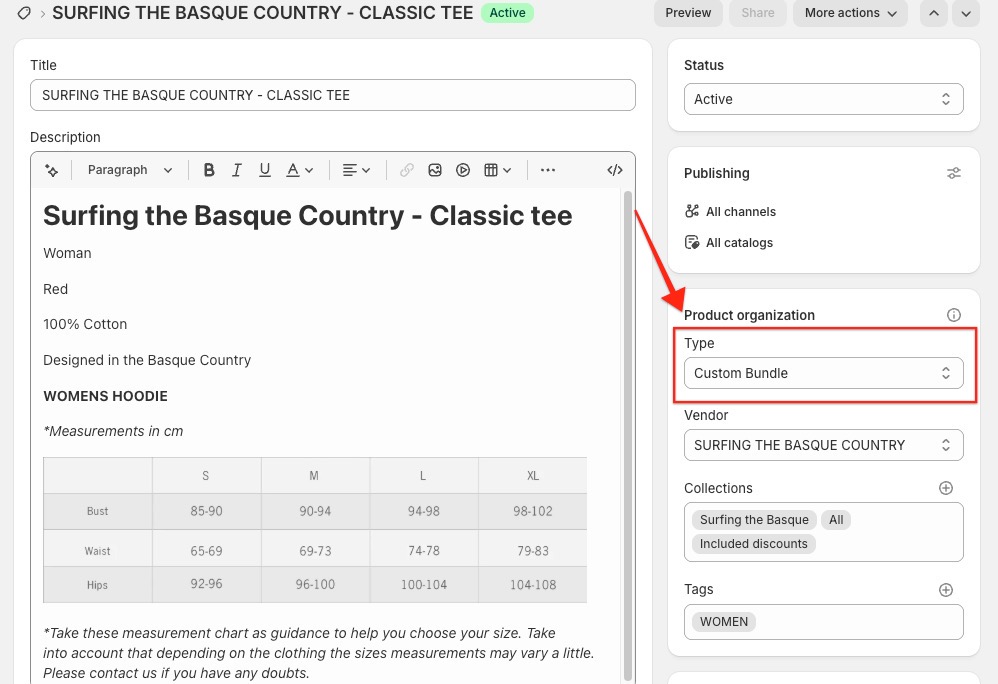
The product should now be hidden from the store.
It can take a while for the store to update, a couple of refreshes and it should be hidden.
Option 2: Set the product to Unlisted
This is the broader option. When you set a product's status to Unlisted, the product can still be sold, but customers can't discover it normally on your storefront. In practice, that means:
- The product page still exists and keeps the same URL.
- Anyone with the direct product link can still open it.
- Customers can still add it to cart from that direct URL, unless you customize the product page to prevent that.
- It won't appear in your store's Shopify-powered:
- collection pages
- search results
- predictive search
- product recommendations
Search and discovery impact
The product is hidden from:
- search engines
- your XML sitemap
- Shopify Catalog
- Shop discovery surfaces
Shopify adds noindex and nofollow tags to the page, so search engines shouldn't index it.
Sales channel impact
- You can't publish unlisted products to third-party sales channels.
- In Shop, unlisted products are non-discoverable, even if they're published there.
Important caveats
- If another website already links to that product, the link can still send customers to the product page.
- Some third-party search or recommendation apps might still show the product if they don't support Unlisted.
- Some third-party apps may show the product as Active, even though Shopify labels it Unlisted in the admin.
Where to change it
- Open your Shopify admin.
- Go to Products.
- Select the product.
- Change its status to Unlisted.
Which one should I use?
Use Option 1 if you specifically need control over your "All" collection and are comfortable maintaining its conditions as your catalogue changes. Use Unlisted (Option 2) if you want the product fully out of every collection, search, predictive search and recommendations at once — it's the more complete option, needs no collection setup, and works even if you don't rely on an "All" collection at all.